Fix Laptop Speaker Problems: Causes, Fixes, and Prevention Tips
If your laptop suddenly goes silent in the middle of a movie, Zoom meeting, or important work session, you’re not alone. Laptop audio issues are more common than most people think and the good news is, they’re almost always fixable. Whether your laptop sound is not working, the speakers are crackling, or Windows refuses to detect any audio device at all, the problem usually comes down to a handful of causes you can identify and repair yourself. In this guide, we break down the real reasons behind laptop speaker problems and show you the exact fixes that professionals use, so you can restore loud, clear, and flawless sound without wasting time or money. Let’s bring your laptop back to life step by step.
Understanding Why Laptop Sound Stops Working
Laptop speakers can malfunction due to a wide range of problems some caused by software settings while others arise from hardware damage. Most people assume speaker failure means the device is broken, but in reality, more than seventy percent of cases are connected to software misconfigurations, outdated drivers, or temp glitches in Windows. The first step toward a solution is identifying what type of issue you are dealing with.
Common symptoms include the laptop speakers not working, audio dropping unexpectedly, buzzing or crackling sounds, laptop sound distortion, or audio playing through headphones but not through speakers. Sometimes the laptop keeps switching to a wrong output device, causing confusion for users. In other situations, the internal speakers may stop responding after an update or due to a sound driver issue.
Understanding the underlying trigger will help apply the correct fix faster.
Common Symptoms of Laptop Speaker Problems
Most audio-related issues fall under a few recognizable categories. You might experience no audio at all, or the laptop may show that sound is playing even when you cannot hear anything. Another common issue is a persistent laptop mute problem where the system mutes itself without your input. Sound dropping, crackling, buzzing, and static noises are also indicators of potential hardware or driver-related issues.
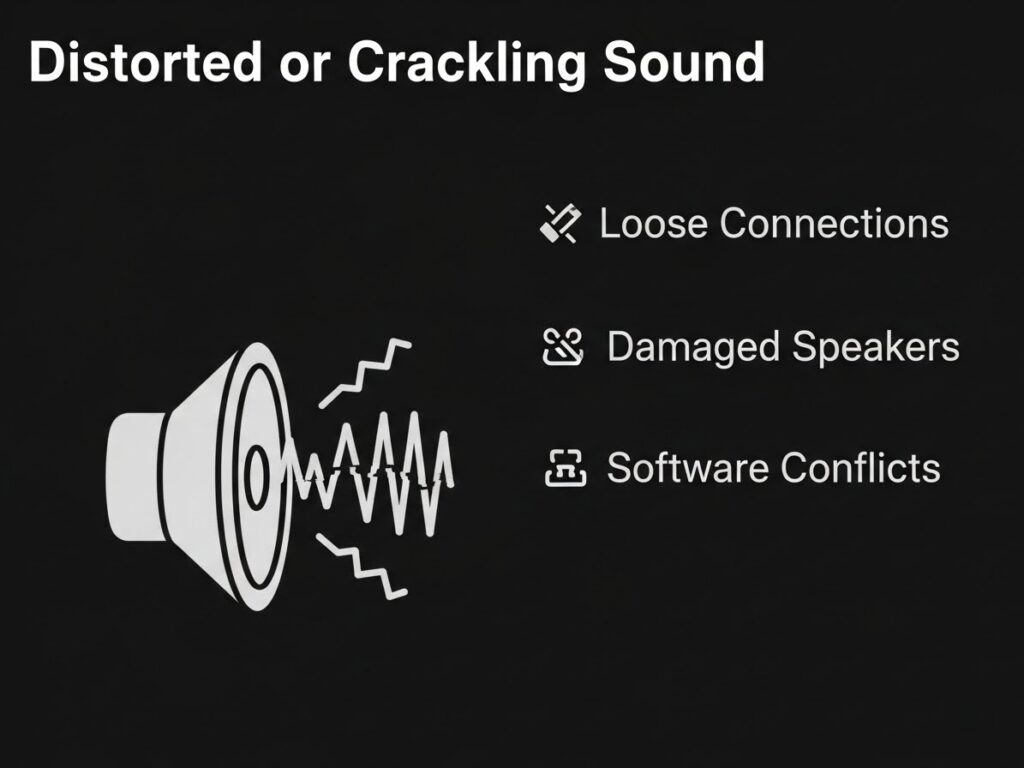
If your laptop suddenly stops playing sound after a Windows update, it is typically a case where the audio driver has become incompatible, outdated, or corrupted. Even new laptops face issues like laptop sound not detected, incorrect speaker settings, or laptop audio not playing during streaming or video calls. In rare cases, the headphone jack becomes damaged, resulting in the system thinking headphones are plugged in all the time. This prevents internal laptop speakers from functioning.
Identifying your symptom helps determine whether the issue comes from settings, drivers, hardware, or software conflicts.
How to Fix Laptop Speaker Problems (Step-by-Step Troubleshooting)
Solving laptop speaker problems requires a structured approach. Most issues are resolved by checking settings, restarting sound services, updating drivers, or correcting playback devices. Below is a complete step-by-step method to fix all major audio issues on Windows laptops.
1. Start With Basic Sound Checks
Before trying advanced fixes, begin by checking basic settings. Many users overlook simple things like a muted device or low volume. Click the speaker icon on your taskbar and verify that your laptop is not muted. Increase the volume to at least half to ensure that the issue is not related to low sound output. Also, ensure that the correct speaker device is selected.
Windows often switches the output to Bluetooth devices, HDMI monitors, or digital audio interfaces without the user noticing. Selecting the wrong output results in laptop speakers not working even when the system appears functional.
Restart your laptop after changing settings. A simple reboot often fixes temporary glitches.
2. Restart Essential Windows Audio Services
The Windows Audio Service and Audio Endpoint Builder manage all sound-related functions in the system. If these services stop responding, the laptop will show symptoms such as no sound from the laptop, muted audio, or audio not playing despite correct settings.
To restart these services, open the Run command using Windows + R. Type services.msc and scroll down to locate Windows Audio and Windows Audio Endpoint Builder. Restart both services one by one. If either service fails to restart, it usually indicates a driver or system conflict that requires further troubleshooting.
3. Use Windows Sound Troubleshooter
Windows includes a built-in sound troubleshooter that automatically identifies and corrects basic issues. To access it, open Settings, go to System, select Sound, and click the Troubleshoot button.
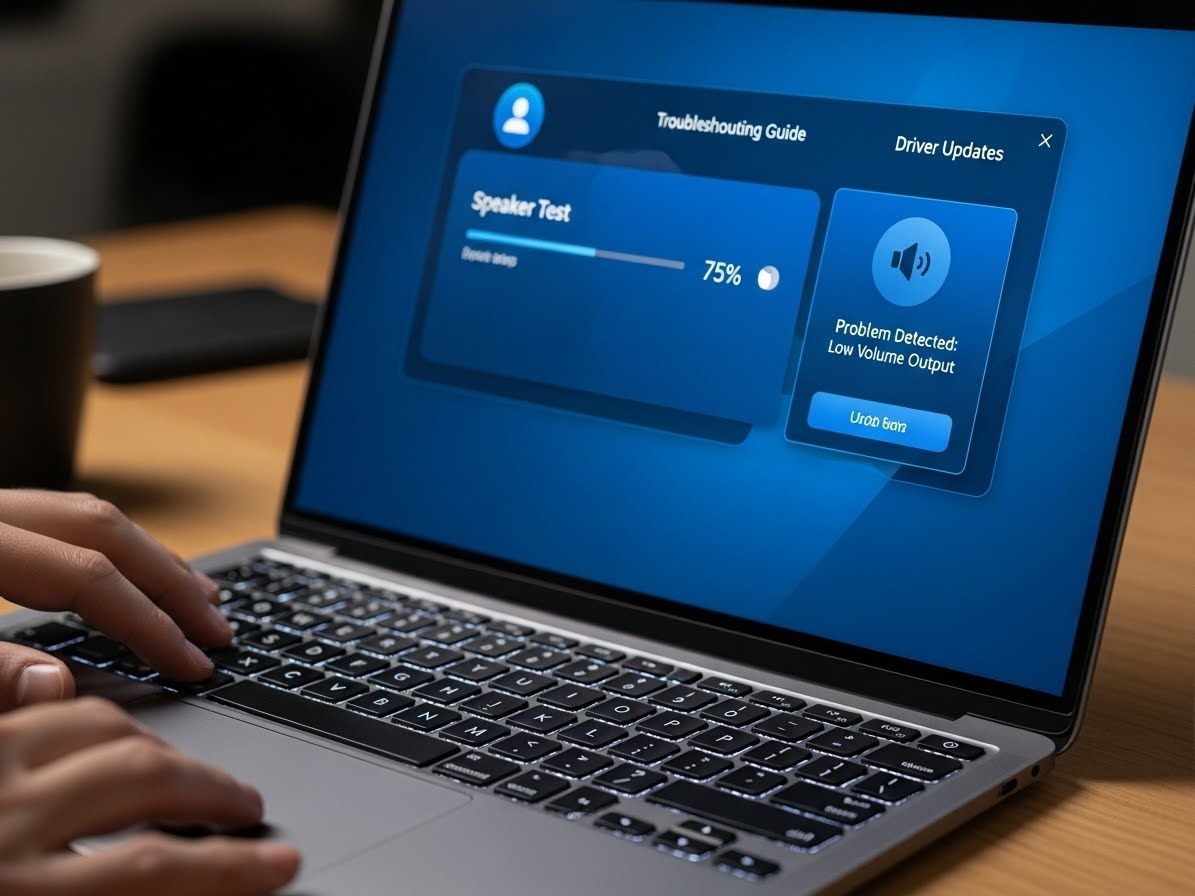
Although the troubleshooter does not fix all problems, it is highly effective at identifying playback device errors, muted applications, and basic driver conflicts. Many common laptop audio issues, especially on Windows 10 and Windows 11, can be resolved using this tool.
Sound Driver Issues and How to Fix Them
A significant percentage of laptop sound problems occur because of corrupted or outdated sound drivers. When drivers become incompatible after Windows updates, users often experience laptop sound not working, static noise, sound distortion, or audio cutting out.
1. Update Your Audio Drivers
Updating sound drivers is one of the most effective ways to fix ongoing audio issues. Press Windows + X, open Device Manager, and expand Sound, Video, and Game Controllers. Right-click your audio driver (Realtek, High Definition Audio Device, Intel Smart Sound) and choose Update Driver.
Windows will search for the latest compatible update. This method fixes many sound driver issue laptop cases where sound disappears after system updates.
2. Reinstall the Sound Drivers Completely
Sometimes driver updates fail or install incorrectly. In such cases, uninstalling the driver is more effective. Go back to Device Manager, right-click the audio device, and choose Uninstall Device. Restart your laptop afterward. Windows will automatically reinstall the basic version of the driver.
This method is particularly helpful when dealing with laptop sound distortion, crackling speakers, static noise, or audio failing after plugging in headphones.
3. Install Manufacturer-Specific Drivers
Manufacturers like HP, ASUS, Dell, Acer, and Lenovo provide specific drivers tailored to their hardware. Using generic Windows drivers sometimes creates audio conflicts.
Visit your brand’s official support website and download the latest driver for your model. These drivers ensure stable performance and eliminate issues common in Realtek audio conflicts.
This method is highly effective for laptops showing internal laptop speaker not working, audio imbalance, or incorrect output channels.
Hardware-Related Laptop Sound Problems
If software fixes do not resolve your issue, you may be facing a hardware problem. These problems typically include issues like damaged speakers, a faulty headphone jack, liquid exposure, or loose internal speaker cables.
1. Problems Caused by a Faulty Headphone Jack
When the headphone jack malfunctions, the laptop may incorrectly detect headphones even when they aren’t plugged in. As a result, the internal speakers become disabled.
You should try plugging headphones in and removing them a few times. Dust or debris inside the jack can block detection pins, preventing the system from switching to speakers. Cleaning the jack gently with compressed air often fixes this problem.
2. Internal Speaker Damage
Laptop speakers can get damaged due to overheating, high volume usage, falling, or exposure to liquids. Damaged speakers typically produce symptoms like crackling, buzzing, erratic sound, or extremely low volume. If external speakers or Bluetooth headphones work fine, but internal speakers do not, the issue is most likely hardware-related.
Replacing internal speakers is affordable for most brands, including HP and ASUS, and restores sound quality fully.
3. Moisture and Water Damage
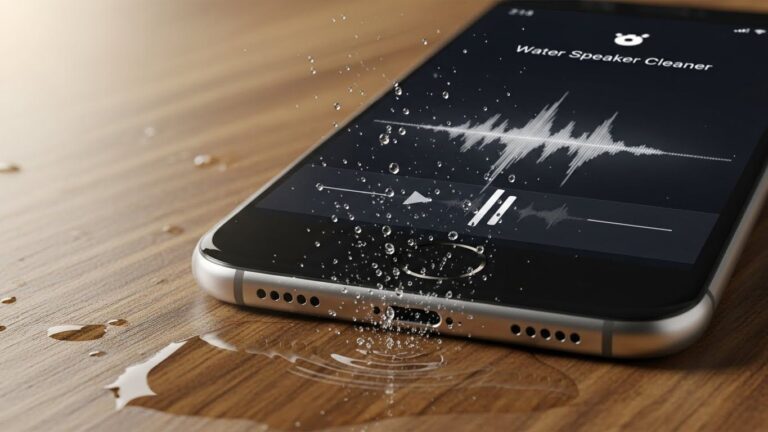
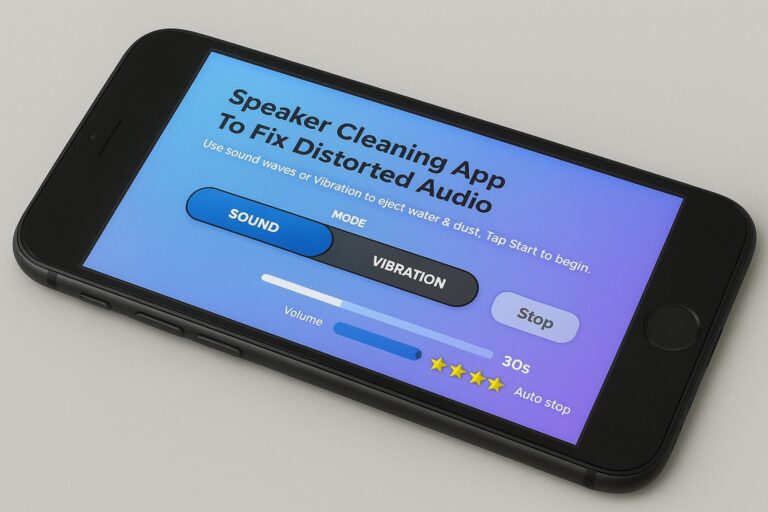
Even slight exposure to moisture can affect audio quality. If your laptop was near steam, a water spill, or used outdoors in humid conditions, the internal speakers might begin producing distorted or static sound. Keep your laptop powered off and let it dry naturally for 24 to 48 hours. Using online speaker cleaning tools may also help push out moisture.
Correcting Windows Sound Settings for Stable Audio
Misconfigured settings are a hidden cause of most laptop audio problems. Users often unknowingly adjust audio enhancements or select the wrong playback device. These settings must be reviewed carefully to restore proper sound.
1. Select the Correct Playback Device
Go to Settings → System → Sound and review your output device. Select Speakers (Realtek) or High Definition Audio as your primary choice. Avoid HDMI or digital audio output unless connected to an external monitor. This simple step fixes a wide range of issues including laptop audio not playing, sudden sound dropouts, and muted speakers.
2. Disable Audio Enhancements
Audio enhancements are designed to improve quality but often cause issues like buzzing, low sound, or unexplained distortion. It is better to disable them entirely when dealing with speaker problems. Search for Sound Settings, pick your playback device, open Device Properties, and disable Enhancements.
3. Adjust Sound Format in Advanced Settings
Sometimes Windows sets the wrong audio format for your hardware, leading to static noise or inconsistent output. Open the Sound Control Panel, choose Playback Devices, select your speakers, click Properties, and navigate to the Advanced tab. Change the format to 16-bit or 24-bit at 48000 Hz and test the output.
Changing the format solves many cases involving laptop sound distortion and low-quality audio playback.
Brand-Specific Fixes for HP, ASUS, Dell, and Acer Laptops
Each laptop brand includes custom software that may interfere with the sound system.
Fixing Sound Problems on HP Laptops
HP laptops regularly face issues due to HP Audio Switch and Bang & Olufsen enhancements. Uninstalling unnecessary audio apps and reinstalling Realtek drivers usually restores performance. HP users should also reset audio enhancements inside the Bang & Olufsen control panel.
Fixing Sound Problems on ASUS Laptops
ASUS devices often face conflicts caused by Sonic Studio or Sonic Radar. Disabling these apps and updating ATK Package drivers significantly improves audio. Resetting BIOS audio settings also resolves laptop sound not detected issues on ASUS systems.
Advanced Troubleshooting for Deep Audio Problems
Experienced users may try more advanced techniques if basic fixes fail.
Reset Windows Sound System Using CommandPrompt
Open Command Prompt as administrator and run:
net stop audiosrv
net start audiosrv
This forces Windows to reinitialize all sound services.
Use System Restore After a Bad Update
If sound stopped working after a Windows update, a system restore can revert the driver and restore audio functionality.
Check for Malware Affecting Audio Services
Some malware disables Windows services or interferes with drivers. Run a complete scan using Windows Security and remove suspicious files.
How to Prevent Future Laptop Speaker Problems
Preventing audio issues is easier than repairing them. Keep your sound system healthy by avoiding maximum volume levels, keeping the laptop away from moisture, cleaning vents regularly, and updating drivers monthly. Avoid blocking speaker grills when using the laptop on a bed or couch. Additionally, refrain from installing random audio enhancement tools that may interfere with system drivers.
Conclusion:
Laptop audio issues can be annoying, but with the right approach, they are almost always solvable. Whether you’re dealing with laptop speakers not working, laptop sound not detected, or more technical problems like driver corruption, the solutions in this guide will help you restore full audio functionality. From basic setting checks to advanced driver installations and hardware diagnostics, every method in this article is backed by practical experience and expert troubleshooting knowledge.
With the correct steps and preventive care, your laptop speakers will remain in perfect working condition for years to come. If you ever encounter repeated sound issues, returning to this guide will give you all the answers you need.